Microsoft Copilot simplifies workflow automation by letting you create processes using plain English – no coding required. Integrated into Microsoft 365 tools like Power Automate, Teams, and Outlook, Copilot uses AI to handle repetitive tasks, saving time and effort. Here’s what you need to know:
- What it does: Automates tasks like email management, customer service routing, and data monitoring.
- Who it’s for: Teams in finance, IT, customer service, and even non-technical employees.
- How it works: Just describe what you want (e.g., "When X happens, do Y"), and Copilot builds workflows for you.
- Requirements: A Microsoft 365 subscription, Power Automate access, and specific technical setups like Exchange Online and Dataverse.
Copilot is already helping companies like Cineplex save thousands of hours annually and enabling tools like Holland America Line‘s virtual concierge. To get started, ensure your organization meets all prerequisites, then use Power Automate’s Copilot feature to create workflows tailored to your needs.
Key takeaway: Microsoft Copilot turns complex automation into a simple, conversational process, making it accessible for everyone. Organizations looking to implement these tools often benefit from generative AI keynotes to align their teams on the technology’s potential.
Building a Power Automate Flow using Copilot

Getting Started with Microsoft Copilot
Microsoft Copilot Prerequisites and System Requirements Checklist
Before diving into Microsoft Copilot, make sure your organization meets all licensing and technical requirements to avoid unnecessary complications later.
Prerequisites and System Requirements
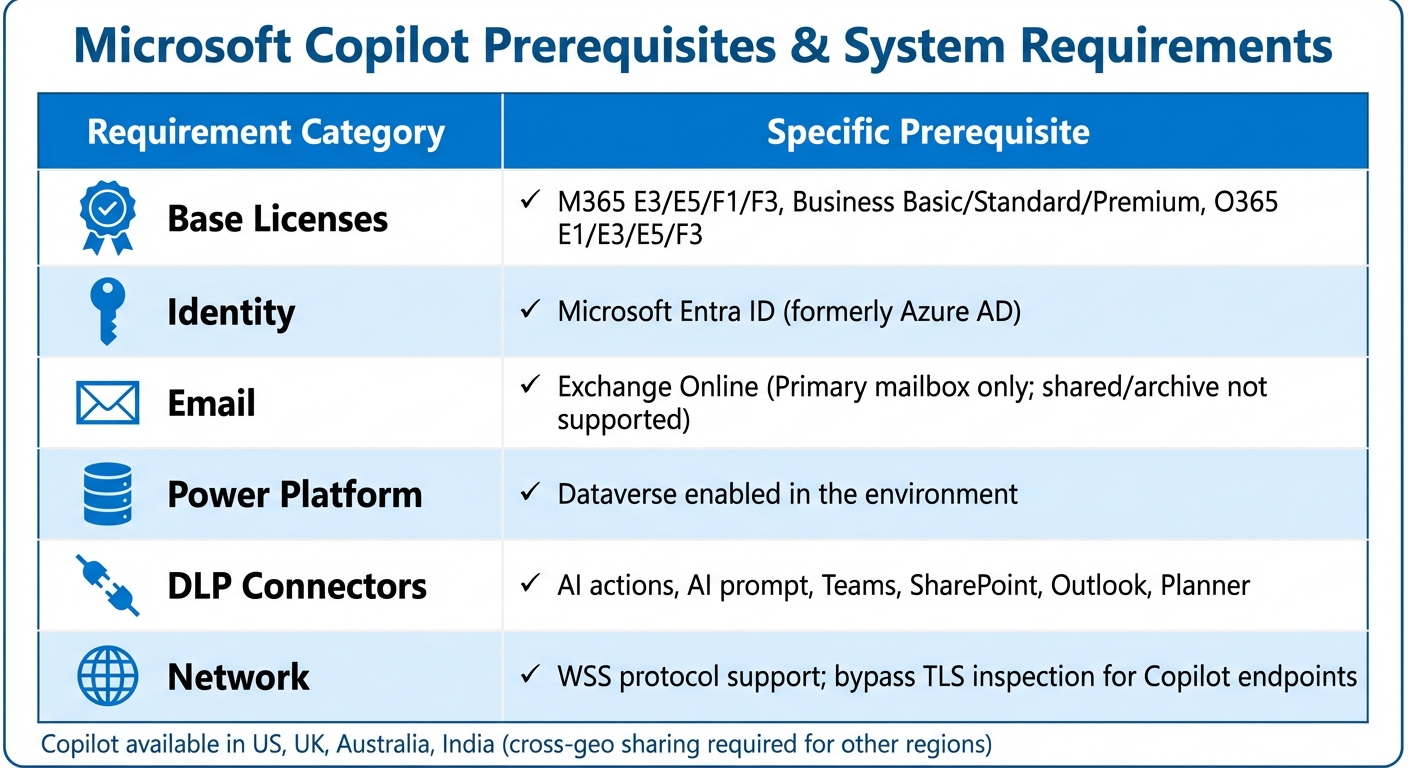
Microsoft 365 Copilot is available as an add-on to existing subscriptions, but there are specific requirements you need to meet. Your organization must have a base license such as Microsoft 365 E3/E5, Business Standard/Premium, or Office 365 E3/E5. Additionally, every user accessing Copilot needs a Microsoft Entra ID account (formerly Azure AD) and a primary mailbox hosted on Exchange Online – shared or archive mailboxes aren’t supported.
For Power Automate, Copilot is automatically enabled in regions with dedicated GPUs, including the United States, United Kingdom, Australia, and India. If your organization operates outside these areas, administrators must enable "cross-geo data sharing" in the Power Platform admin center to allow data processing across regions.
Your environment also needs a Dataverse database to support AI-driven automation and workflow agents. Ensure Data Loss Prevention (DLP) policies are configured to allow the use of the "AI actions" connector and the "AI prompt" feature in Dataverse. On the network side, WebSockets (WSS) connectivity must be enabled for *.cloud.microsoft and *.office.com, and third-party cookies need to be allowed for Word, Excel, and PowerPoint Online.
| Requirement Category | Specific Prerequisite |
|---|---|
| Base Licenses | M365 E3/E5/F1/F3, Business Basic/Standard/Premium, O365 E1/E3/E5/F3 |
| Identity | Microsoft Entra ID (formerly Azure AD) |
| Exchange Online (Primary mailbox only; shared/archive not supported) | |
| Power Platform | Dataverse enabled in the environment |
| DLP Connectors | AI actions, AI prompt, Teams, SharePoint, Outlook, Planner |
| Network | WSS protocol support; bypass TLS inspection for Copilot endpoints |
Once these requirements are met, you’re ready to access Copilot in Power Automate.
Accessing Copilot in Power Automate
Getting started with Copilot in Power Automate is simple once the prerequisites are in place. Log in to the Power Automate portal, and ensure "Home" is selected in the left-hand menu. On the home page, you’ll find the field labeled "Create your automation with Copilot", which serves as your launchpad for building workflows.
Before creating workflows, use the environment switcher in the top-right corner to select the appropriate environment. This step is crucial because environments act as boundaries for different departments or development stages (e.g., sandbox versus production), and components aren’t easily transferable between them. To work within an environment, you’ll need a security role such as Environment Maker, System Customizer, or System Administrator.
If Copilot doesn’t appear, check with your administrator to confirm that "AI actions" and "AI prompts" are enabled in your environment’s DLP policies. Keep in mind that Copilot features are only available in the "new designer" experience, not the classic one. You can also explore the Microsoft 365 Copilot Agent Store for automating tasks across apps like Outlook, Teams, and Planner.
Once everything is set, you’re ready to create your first automated workflow using Copilot’s natural language capabilities.
Setting Up Your First Workflow Environment
To create your first workflow, simply describe what you want to automate in the "Create your automation with Copilot" field using natural language. For example, you might type: "When a new response is submitted in Microsoft Forms, send an email via Outlook." Using a "When X happens, do Y" format with specific connectors (like Outlook or Teams) ensures clarity.
Click Generate, and Copilot will suggest a trigger (the event that starts the workflow) and one or more actions. If the suggestion works for you, select "Keep it and continue." If not, refine your input with more details – Copilot will remember the context of your earlier instructions.
Before finalizing, check the Connections section. Ensure all apps show a green checkmark. If there’s a red exclamation mark, click it to update credentials or configurations as needed. Once everything is verified, click "Create flow" to open the designer. Here, you can use the Copilot pane on the right to make adjustments or ask questions before saving and testing your automation.
This process allows you to build dynamic workflows powered by AI, streamlining tasks and boosting productivity across your organization.
Building and Automating Workflows with Microsoft Copilot
Once your setup is ready, creating workflows becomes as easy as describing your needs in plain English. With Microsoft Copilot, you can outline what you want, and it will handle the heavy lifting – identifying the right connectors and building a complete workflow for you. No coding required.
Let’s see how natural language prompts can streamline your workflow creation process.
How to Use Natural Language Prompts
To get the best results from Copilot, stick to a clear format: "When X happens, do Y." This structure separates the trigger (what initiates the workflow) from the action (what should happen next). For example, instead of saying, “I need help managing emails,” try something like this:
"When an email from my manager arrives, post the email subject in the ‘General’ Teams channel."
Be specific when naming folders, Teams channels, email senders, or SharePoint locations. For instance:
"When a new file is uploaded to the ‘Marketing’ folder in SharePoint, send me a mobile notification with the file name."
This level of detail ensures Copilot understands exactly what you need and reduces the chance of errors later on. If the initial workflow isn’t perfect, you can refine it using follow-up prompts. For example, you might say:
- “Instead of a notification, send an email.”
- “Add a condition to check if the file size exceeds 5 MB.”
Copilot keeps track of the context for your last 10 interactions, so you can adjust and improve workflows in a conversational way. Skip the technical terms – just explain the task as you would to a colleague. This approach is recommended by AI expert Lasse Rouhiainen for maximizing generative AI efficiency.
Examples of Automated Workflows
Here are some practical examples to get you started:
| Scenario | Sample Natural Language Prompt |
|---|---|
| Email Management | "Each weekday morning, review all unread emails from the last 24 hours, summarize them, and send the summary to me on Teams." |
| Notifications | "When an item is created in SharePoint, send me a mobile notification with the item title." |
| Scheduled Tasks | "Create a flow that runs on the first of every month… Send a newsletter email to [address] with the subject ‘Monthly Update’." |
| Teams Integration | "When an email from my manager arrives, post the email subject in the ‘General’ Teams channel." |
Manual vs. Copilot-Automated Workflows
Manually building workflows often involves selecting triggers, actions, and configuring parameters one by one. With Copilot, you simply describe the outcome you want, and it generates the entire workflow – complete with triggers, actions, and connections.
Here’s how they compare:
| Feature | Manual Workflow Design | Copilot-Automated Workflow |
|---|---|---|
| Input Type | Manually selecting triggers and actions | Describing the process in plain language |
| Setup Speed | Slower; requires step-by-step configuration | Faster; builds the entire workflow from one prompt |
| Connection Handling | Requires manual setup for authentication | Automatically identifies and configures connections |
| User Requirement | Knowledge of platform logic and connectors | Ability to explain the task in everyday language |
| Modification | Manual editing of workflow components | Easy adjustments via conversational prompts (e.g., "Switch Teams to email") |
| Error Handling | Debugging and reviewing logs manually | AI-assisted troubleshooting with helpful summaries |
Although Copilot simplifies the process, it’s always a good idea to review any AI-generated workflows before putting them into action. For example, if you’re working with similarly named SharePoint sites or Teams channels, double-check that it selected the right one. Use the "Test" feature in the workflow designer to verify everything works as expected and catch potential issues early.
sbb-itb-7878072
Optimizing Workflow Automation with Copilot
Creating a workflow is just the starting point. To truly unlock its potential, you need to test, monitor, and refine it. Microsoft Copilot provides tools that simplify error detection, performance tracking, and spotting areas for improvement.
Testing and Monitoring Workflows
Once you’ve saved a workflow, click the "Test" button to simulate the trigger and review each step. This helps you catch issues before the workflow goes live. If something doesn’t work as expected, the "Troubleshoot in Copilot" feature can assist in identifying the problem – whether it’s a trigger misfire, a connection issue, or a missing parameter.
After workflows are operational, you can monitor their performance using natural language queries in the automation center. For example, you might ask, "How many flows failed yesterday?" or "What were the most common errors last month?" Copilot interprets your question, retrieves the relevant data, and presents it in a clear format, such as a pie chart, bar chart, or table. Need more details? Ask follow-up questions like, "Which machine caused the most failures?" to dig deeper into the data. Copilot keeps track of your last 10 questions for cloud flows (and 5 for desktop flows), ensuring the conversation stays focused.
For added transparency, click "Show code" to view the FetchXML query Copilot generated. You can copy and test this code in a "List rows" Dataverse action to confirm the accuracy of the results. If your analysis session is lengthy, consider restarting the chat after 5–10 questions to maintain quality responses and reset the context.
Once testing confirms smooth operation, shift your attention to refining the workflow’s design for better efficiency.
Best Practices for Workflow Design
With a tested workflow in place, following some key design principles can enhance clarity and performance.
Start by mapping the process manually before diving into automation. Automating a flawed or unclear process only amplifies inefficiencies. Talk to the people who use the workflow daily, gather their input, and document the steps thoroughly. This foundational work is often emphasized by artificial intelligence keynote speaker Lasse Rouhiainen when discussing automation strategy. This ensures your automation is built on a solid foundation.
When creating prompts, stick to a "When X happens, do Y" structure and clearly reference connectors like Outlook, Teams, or SharePoint. Be precise about details such as folder names, channels, or email addresses. For more advanced agents, you can include up to 8,000 characters of detailed instructions outlining the agent’s role, goals, and behavior. When adding knowledge sources, focus on specificity over volume – use targeted SharePoint folders or files instead of entire sites to avoid irrelevant data.
Using Insights from Copilot
Copilot’s analytics can help you identify inefficiencies and refine your workflows. For example, you could ask, "Show me failed flows from last month," and then follow up with, "What was the most common error?" This multi-step query approach allows for deeper analysis without starting over. You can also review work queue data to identify items at risk of missing Service Level Agreements (SLAs) and adjust resources as needed.
If you’re unsure about a workflow’s purpose, simply ask Copilot, "What does my flow do?" for a quick summary. This feature is especially helpful when revisiting older workflows or reviewing automation built by someone else.
Conclusion
Key Takeaways
Microsoft Copilot takes the complexity out of workflow automation by allowing users to create workflows in plain English, without needing to configure anything manually. This no-code approach makes it possible for employees across all roles to design workflows that seamlessly integrate tools like Outlook, SharePoint, Teams, and Planner. The benefits? Reduced manual errors, quicker task completion, and more time to focus on strategic priorities that help grow your business.
Real-world examples highlight how streamlined workflows can significantly improve operational efficiency. These success stories serve as a bridge to actionable strategies for business leaders.
Next Steps for Business Leaders
With these efficiency gains in mind, business leaders can take deliberate steps to make the most of AI-driven workflow automation. Start by identifying a process with high potential for impact. Map it out manually with input from your team, test it using Copilot, and refine it based on the results before rolling it out across your organization.
As you scale, make data governance and security a priority. Implement Data Loss Prevention (DLP) policies, review SharePoint permissions, and ensure Copilot only accesses verified and trusted sites [1]. For example, the Commonwealth Bank of Australia allocates about $2 billion annually to AI and digitization efforts [2], showing how crucial it is to build automation on a secure, well-structured foundation.
To speed up AI adoption, consider hosting workshops, bringing in AI consultants, or offering training programs. These initiatives can help your team become proficient in using natural language prompts and adopting best practices. By building internal expertise, your organization can continue to evolve its workflows, transforming automation from a one-time upgrade into a lasting competitive edge.
FAQs
How does Microsoft Copilot ensure data security and privacy in workflow automation?
Microsoft Copilot takes data security and privacy seriously by utilizing the powerful security, governance, and compliance tools already integrated into Microsoft 365. Your data stays within your environment, protected by encryption, role-based access controls, and audit logging to keep sensitive information secure.
On top of that, Copilot follows rigorous privacy standards, equipping businesses with tools to oversee and manage data usage while retaining full control of their information. These safeguards reflect Microsoft’s dedication to protecting user data and adhering to regulatory requirements.
Can Microsoft Copilot be used in industries outside of finance, IT, and customer service?
Microsoft Copilot offers a wide range of applications across industries like human resources, manufacturing, and healthcare. By automating workflows, simplifying operations, and boosting efficiency, it extends its usefulness far beyond just finance, IT, or customer service.
This makes Copilot a valuable tool for any business aiming to increase productivity while cutting down on repetitive manual tasks, regardless of the field they operate in.
What challenges might I face when setting up Microsoft Copilot for workflow automation?
When setting up Microsoft Copilot for workflow automation, teams often encounter a few roadblocks. One of the most common is the learning curve that comes with adopting AI-powered tools and low-code platforms. Getting familiar with configuring triggers, connectors, and permissions across Microsoft 365 apps like Outlook, SharePoint, and Teams can be tricky and demands careful attention to detail.
Another challenge lies in infrastructure and licensing. Since Copilot relies on stable cloud connectivity, network disruptions can throw a wrench in automated workflows. Budgeting for enterprise licenses – especially for larger deployments – can also be a sticking point. On top of that, organizations must tackle data privacy concerns by implementing robust governance policies to protect sensitive information.
To navigate these challenges, prioritize thorough training, establish strong governance frameworks, and plan configurations with precision. These steps can help ensure a smoother and more effective deployment.